Introduction
A personal AI assistant has become part of how I organize my day-to-day life. I use it to plan my days, manage my calendar and projects, stay on top of finances and bookkeeping, and reflect on the week.
For this, I use existing agent applications, or harnesses. I switch between Claude Code and Codex depending on my spending, remaining quotas, and which new model’s capabilities I want to try. I also run OpenClaw on a Mac mini, which stays on so I can reach the assistant through Telegram on my phone even when my laptop is closed. Over weak connections, that messaging setup has worked more reliably for me than accessing Codex remotely.
As I move between these tools, I want my notes, preferences, instructions, and workflows to carry over, along with useful updates from each agent. Built-in memory helps, but it often stays tied to a particular product. I also want to see what my agents are saving and correct or reorganize it when needed. That led me to build a shared knowledge base that my agents and I can read, edit, and maintain together.
A couple of weeks ago, I walked through this approach in one of O’Reilly’s Zero to Agent sessions. This guide is an extension of that session, with more room to explain the design choices for a personal setup spanning a few agents and devices.
Table of contents
Open Table of contents
Architecture of a shared knowledge base
A shared knowledge base holds the information you and your agents use across tasks.
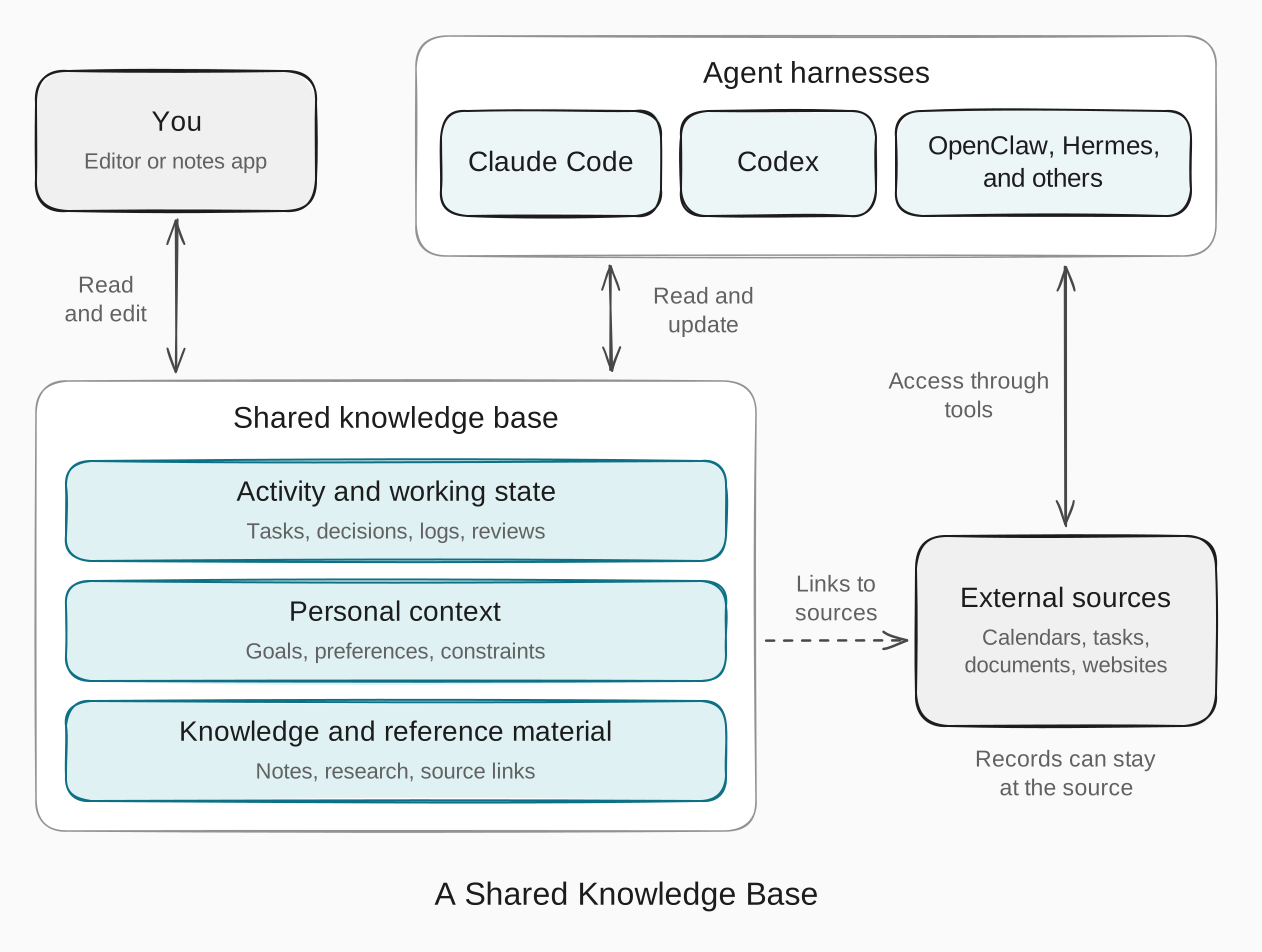
It gives you a common place to maintain notes, decisions, and personal context, so you can return to that material from different harnesses.
Shared material
To help across different tasks, agents need to understand what is happening, what matters to you, and what information they can draw on. The shared material falls into three broad categories:
- Activity and working state: records of what has happened and where things stand. These can include ongoing tasks, project updates, decisions, daily logs, periodic reviews, and handoff notes that help an agent continue unfinished work.
- Personal context: information that helps an agent tailor its work to you, such as your goals, preferences, responsibilities, and constraints. Available time, current priorities, or a preferred level of detail can all affect what makes a response useful.
- Knowledge and reference material: information you want to retain and draw on, such as research notes, explanations, how-to guides, saved articles, and links to original sources.
These categories often overlap. A project overview might bring together its current status, the constraints affecting it, and links to relevant research. Keeping those connections visible helps an agent understand the work and find the supporting detail.
Some of that information can stay in external systems and be accessed when needed. The knowledge base can hold summaries or selected details, with links back to the originals for checking current information. We’ll cover those connections in External system connections.
From a knowledge base to a workspace
As different agents use the collection, shared guidance helps them follow the same conventions. Operating instructions and navigation maps explain where to look, how to interpret records, and where updates belong. Skills capture recurring procedures and their supporting resources, such as templates and scripts. Tool connections give agents access to files and applications.
Adding these instructions, skills, resources, and tool connections turns the knowledge base into a shared agent workspace.
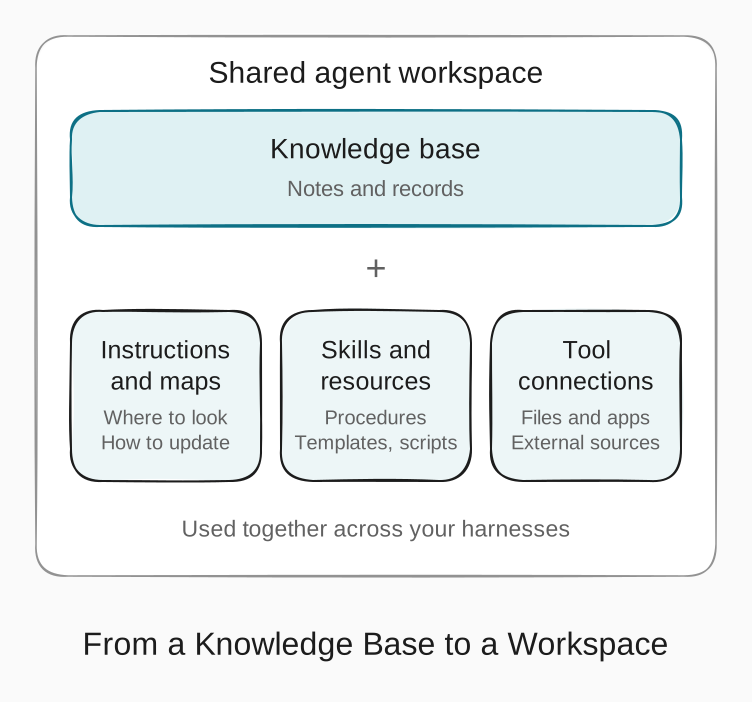
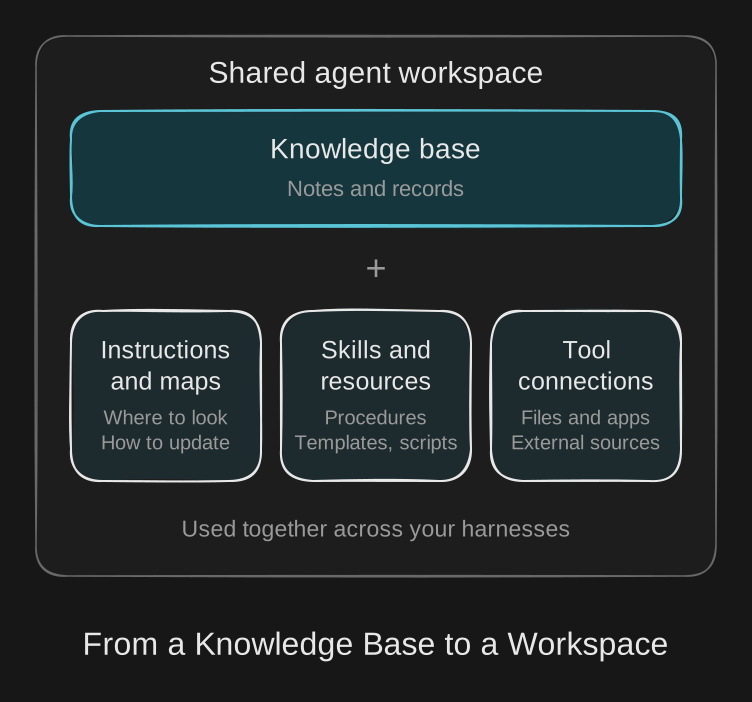
The parts can live in different places, provided your agents can find and use them together.
Storage and organization
Storage and platform choices
The storage choice determines where the records live and how they are maintained. You can keep them as ordinary files, use a hosted platform, or build your own storage setup on a database for more specialized needs.
With Markdown files, the knowledge base is a folder of plain-text notes. You and your agents can read and update the files through different tools, so the material can stay the same as you change editors or harnesses. You manage the folder’s organization and availability across devices.
A hosted knowledge platform, such as Notion, manages the collection as pages and structured records. It provides both storage and an editing interface. Agents use supported integrations; Notion’s agent tools show what they can read or change. Export options help when you move the material elsewhere. Notion exports pages as Markdown and databases as CSV, though reimporting those files will not recreate the entire workspace.
If existing platforms cannot support your use cases, you can build a custom storage setup on a database. You’ll need to design a schema, meaning the fields, data types, and relationships between records, and plan how to update existing data when that structure changes. You’ll also need tools for reading and updating the records. Garry Tan’s GBrain illustrates this approach: it uses PGlite or PostgreSQL alongside Markdown files, with some records stored only in the database. Files or a hosted platform are usually enough for a personal collection of notes and reviews.
You can also combine these options. Research and project pages might stay in Notion, with shared instructions, skills, and scripts in a local folder. Give each component a clear home and link between them, so an update to a project overview has one place to go.
Knowledge base availability
Storage also affects whether you and your agents can reach the material when a computer sleeps or a connection drops. If the only copy is on your laptop, another device cannot reach it while the laptop is asleep. A complete local copy supports offline work on that device, while a hosted service can remain accessible independently of your laptop.
For offline work, the files need to be downloaded onto the device. Sync clients can show filenames whose contents are still online, so keep the notes, instructions, templates, and skill resources you need available locally. Google Drive’s streaming and mirroring options and Dropbox’s offline settings illustrate how this works. The cross-device section covers how to keep copies on different devices up to date.
Workspace organization
For the rest of this guide, we’ll assume the knowledge base is stored as Markdown files. Given that, the folder structure should help you and your agents find relevant material and know where to save updates. A starter workspace might look like this:
workspace/
  README.md
  AGENTS.md
  notes/
  projects/
  logs/
    daily/
    weekly/
    monthly/
  skills/
  templates/
Choose folders that reflect the material you keep. In this example, README.md acts as a map for you and your agents, explaining what each area contains and linking to useful starting points. AGENTS.md holds operating instructions and points to that map. A project overview can then lead to its decisions and research, or a topic overview to related reference notes. If you keep periodic reviews, link them to the records they summarize.
A few repeatable conventions help agents interpret what they find. A source and date make a research note easier to trace, while a current status and open questions help explain where a project stands. You can describe these conventions in AGENTS.md so agents know what to include when creating or updating notes. Templates can remind you and your agents to record those details. Keep them simple enough that the fields remain useful and get filled in.
In a hosted platform, pages, links, and properties can provide the same route from an overview to the relevant detail.
Interfaces and integration
You and your agent need different ways of working with the same knowledge base. You browse and edit through an application’s interface, while the agent uses shell commands or specialized tools to search, read, and update the underlying records.
Human interfaces
For a Markdown collection, you can choose the editor independently of the storage. Obsidian is one option for browsing, linking, and editing the files; it calls the folder a vault. You can also use other Markdown editors or a general-purpose text editor to work with the same files. A hosted platform such as Notion includes its own interface for working with its pages and structured records.
An increasingly common approach is to use the agent itself as your interface to the knowledge base. Through a conversation in your chosen harness, you can ask it to find notes, synthesize material, or update the collection. You can review its work in the conversation or open the files in your editor.
Agent interfaces
The available options depend on both the storage and the harness. A harness can provide tools for reading, searching, and editing files, along with a shell tool for running terminal commands. Those commands can work directly on files or invoke an application’s features. An Obsidian vault illustrates both routes: an agent can read its Markdown files directly or use Obsidian’s commands to search the vault and work with daily notes.
For a file-based knowledge base, first make the folder available to the harness. Two common arrangements are:
- Use the knowledge base as the project directory. Start Claude Code or Codex in that folder. From a terminal, change into the folder and run
claudeorcodex. In the Codex app, add the folder to a local project and make it the primary directory. - Point to it from an existing agent workspace. With OpenClaw, you can keep the agent’s own workspace and add the shared folder’s absolute path to that workspace’s
AGENTS.md. Explain when to use the knowledge base and direct the agent to read itsAGENTS.mdandREADME.md. The folder must be available where the agent’s tools run, with permission to read it and save the intended updates. For a sandboxed deployment, configure access to that folder as well.
With direct file access, the agent works on the files themselves. For example, the text-search utility ripgrep, invoked as rg, searches their contents. From the root of the example workspace:
rg -n -i 'website launch' projects/ logs/This returns matching lines with their line numbers, ignoring capitalization, so the agent can identify notes to read. Because the command searches the files themselves, it works with Obsidian closed. A harness can also expose file and search tools directly, as Claude Code’s tool overview illustrates.
For application operations, the request goes through the application. A command-line interface, or CLI, lets you invoke its operations through commands in a terminal; an application programming interface, or API, lets another program call them. Obsidian’s CLI provides commands for search, daily notes, and other application features. With the CLI enabled and the intended vault selected, an agent could run:
obsidian search query="website launch"Both searches can run through the harness’s shell tool. The difference is what handles the search: ripgrep reads the files directly, while Obsidian’s CLI sends the request to the running application.
Skills provide instructions for using these tools and formats. The Obsidian skills include guidance for editing note links, properties, and visual canvases, along with a skill for using the Obsidian CLI. The agent reads that guidance, then uses its file or shell tools to carry out the work. Similar CLI tools and skills exist for other storage systems as well, so be sure to look it up before building something yourself.
A harness can also connect to a server that exposes tools. The Model Context Protocol, or MCP, standardizes how compatible harnesses discover and call those tools. The server implements them using the underlying files or application interfaces. For example, a Notion connection provides tools for searching and updating content through Notion’s API. The path is harness → MCP server → application API. See the MCP architecture and Notion’s MCP documentation.
These terms describe different parts of the setup, so they can overlap: the files hold the material, a CLI exposes commands, and MCP makes tools available to a compatible harness if the data is being hosted elsewhere.
Operating instructions and shared skills
Once agents can reach the knowledge base, they need shared conventions for using it. Operating instructions give them starting points, rules for updates, and guidance on when to involve you. A compact AGENTS.md might say:
Start with the map in README.md and follow its links to relevant notes. Record confirmed decisions with their date and supporting context in the appropriate note. Put uncertain captures in an inbox for review. For records maintained in external applications, consult the original record and ask before changing it.
That gives the agent a starting point and a few rules it can use across tasks. More detailed procedures can live in linked files, keeping the entry instructions short.
The example uses AGENTS.md, an established format for agent instructions. Anthropic announced support in Claude Code 2.1.277, where AGENTS.md can serve as a fallback to CLAUDE.md. Each harness still needs to load the guidance: use its built-in support for that file, or direct it to read the file through its own project instructions or workspace settings.
For recurring tasks, a skill can define a procedure your agents follow consistently. A synthesis skill, for example, could standardize how new information is captured, organized, and stored across your knowledge base. If you follow a Zettelkasten approach, the skill could guide the agent to draft notes around individual ideas, preserve source references, and link to existing notes while explaining the connections. It can also specify where to save those notes and include templates, scripts, and examples to guide the process.
The procedure can stay shared even when tool names or available operations differ between harnesses. Each harness needs a way to discover the skill, read its supporting files, and call the tools it needs. Make those adjustments in the harness’s setup so you can maintain the common procedure in one place.
External system connections
When a task needs current information from another application, the harness needs a connection to that system. These connections can use tools built into the harness, command-line tools run through its shell, or tools exposed by an MCP server. In my setup, I connect my agents to my calendar, to-do app, and email amongst other things. For a project review, an agent could bring together upcoming meetings, unfinished tasks, and relevant email discussions with notes in the knowledge base explaining earlier decisions.
Decide which system is the authoritative source for each type of record: the place where you maintain it and expect to find its current details. Calendar events can stay in the calendar, while a weekly plan in the knowledge base references them and explains how they shape your priorities. Likewise, tasks can stay in your to-do app and emails in your mailbox, with project notes capturing decisions and linking back to the relevant records.
Document these boundaries in AGENTS.md: where agents should check current records, what to summarize in the knowledge base, and where updates belong.
You can develop each connection gradually:
- Start with scoped read-only access. Read only the relevant records, such as one project’s task list.
- Make the procedure repeatable. Use a skill to specify when to access each system, which tools to call and in what order, and how to use the results, such as combining them with notes for a review.
- Preview proposed writes. Show the exact task and proposed change, such as moving its deadline from Tuesday to Friday.
- Apply confirmed writes. Make the approved change, check the result, and record what changed.
- Schedule dependable imports or refreshes. Once the interactive procedure works reliably, automate the parts that keep the knowledge base current, such as importing completed tasks into a review draft.
Retrieval and the knowledge lifecycle
Retrieval and context assembly
An agent needs relevant information from the knowledge base and any connected external systems. Retrieval finds relevant notes and records; context assembly combines selected information with your request, the conversation, and applicable instructions. The agent uses this context to reason, plan, synthesize material, and take action.
For a personal setup, you can usually rely on the harness’s existing search, reading, and context-management capabilities. The model chooses what to search and read, while the harness runs the tools and manages the resulting context. This happens throughout the task, as Claude Code’s description of its agent loop illustrates.
Suppose you ask, “What is still unresolved before the website launch?” The agent can use the knowledge base map to find the project overview, follow links to decisions, and search related notes or logs with ripgrep. It might also check the connected task manager for current task status. The overview and a few relevant records may be enough initially; the agent can search further as questions arise.
You can support retrieval with descriptive filenames, a useful map, and links between related notes. Concise overviews and focused notes help with context assembly by making it easier to select useful information within the model’s context limit. Dates, status, and source links help the agent interpret what it finds: last month’s launch plan might conflict with yesterday’s decision. Put guidance about where to look and which sources to consult for current information in AGENTS.md. Anthropic’s context engineering guide explains how organization supports this process.
Again, for a small personal collection, navigation and text search are often enough. If searches repeatedly miss useful notes expressed in different terms, semantic search can help find related material by meaning. Some setups use vector databases to support this. The further reading at the end includes projects that explore these approaches.
Capture, writeback, and curation
As you and your agents work, useful decisions, observations, and references can be saved to the knowledge base so they are available for future tasks.
Writeback is saving a useful result to the appropriate note or record. Your AGENTS.md or a skill should specify what to retain, where it belongs, and when to update an existing note. Saved updates need enough context to make sense later. For example, “Launch moved to October 12 because two pages still need content review” records both the change and its reason. A link to the decision or source lets another agent follow up.
Those instructions can also distinguish routine updates that agents may save directly from changes you want to review first. Uncertain observations can wait in an inbox; inferred preferences, lasting conclusions, and substantial reorganizations may need your review.
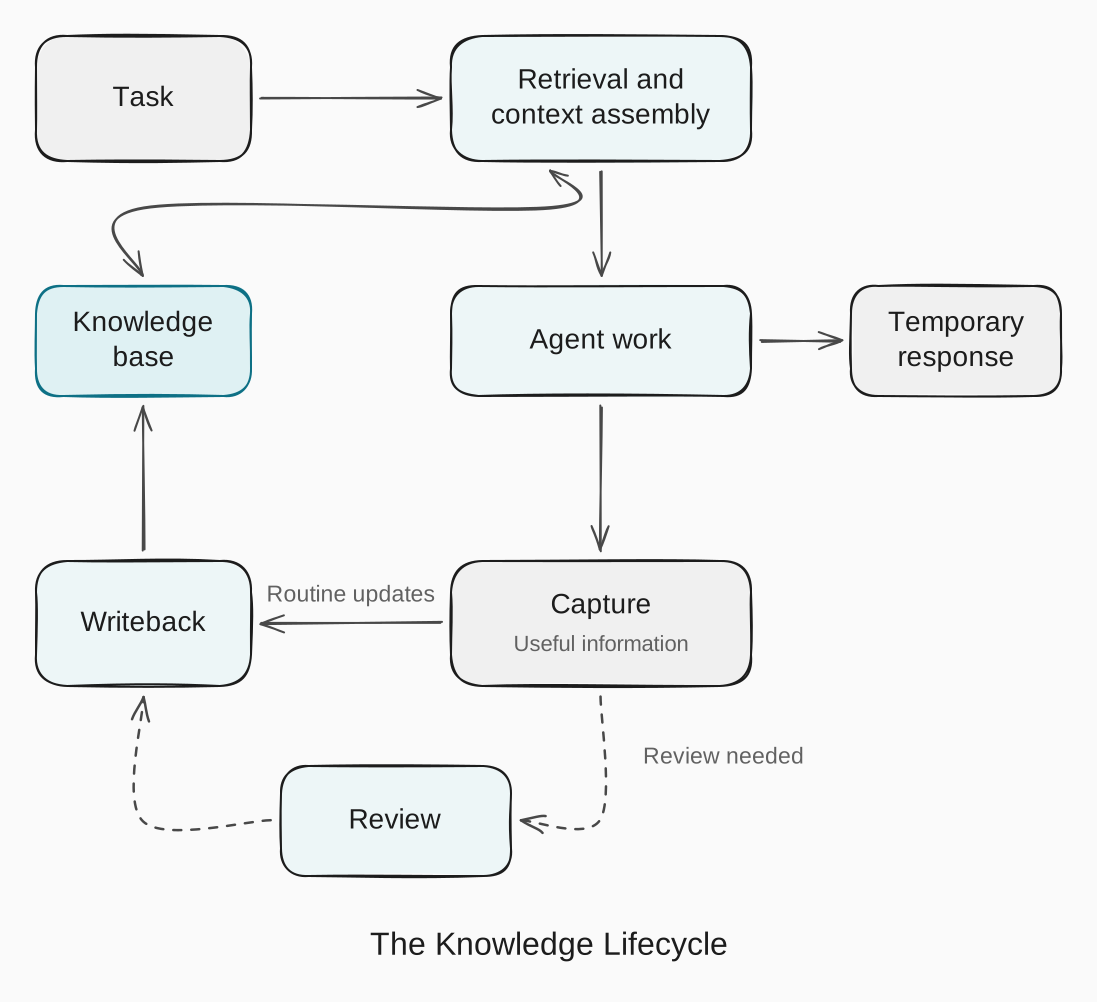
Curation keeps existing material accurate, connected, and useful. Agents can help by merging duplicate notes, correcting claims, linking related ideas, marking decisions that have been replaced, and identifying obsolete material.
Curation also includes creating and maintaining summarized views that bring related information together at a higher level. Daily notes might feed weekly reviews and then a monthly summary. A project overview could bring together key decisions and their rationale from meeting notes and logs, while a topic summary could connect ideas across research notes. Each view organizes the material for a different purpose, giving you and your agents a useful starting point. Keep the underlying notes and link back to them so you can follow the reasoning, check a source, or recover details the summary leaves out.
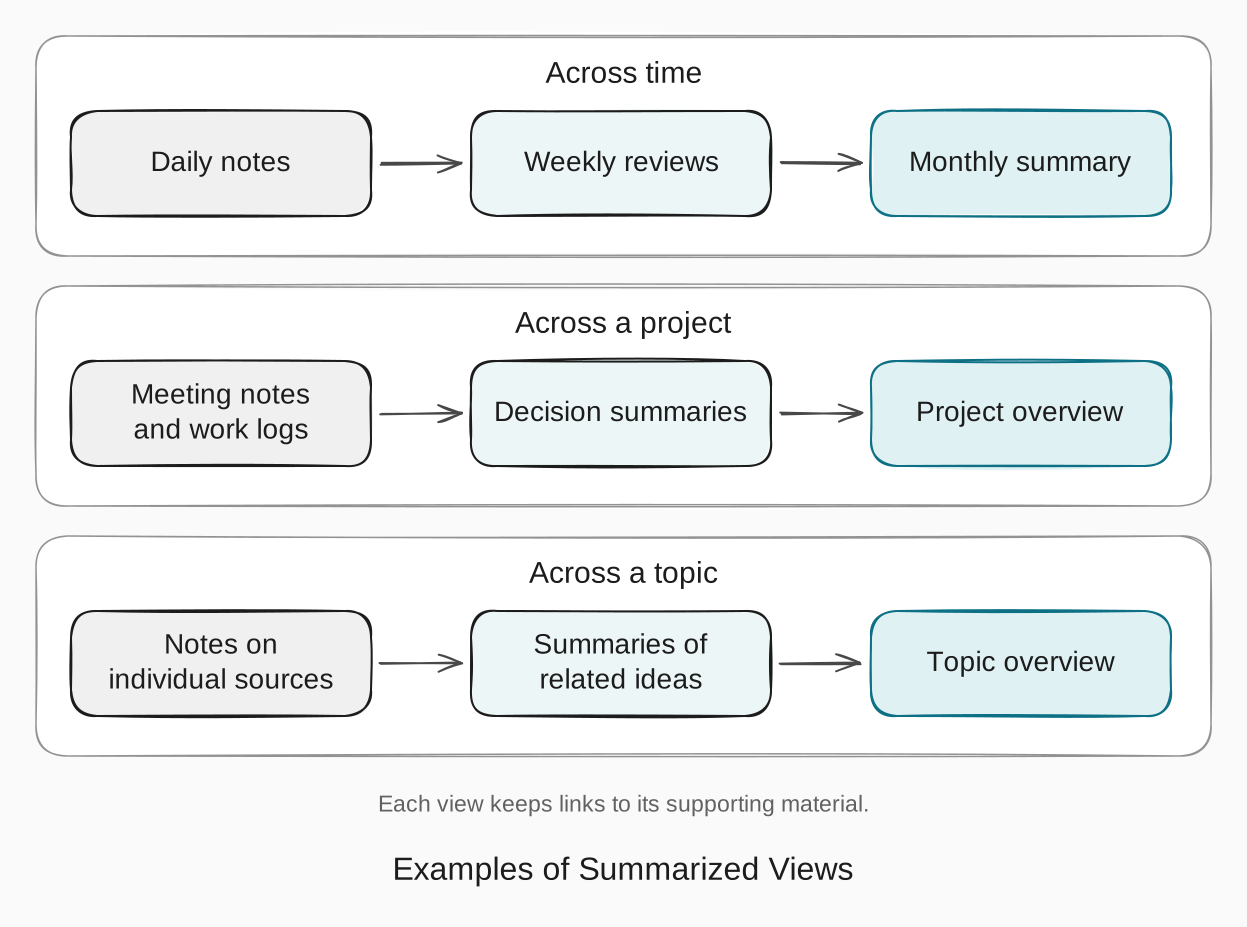
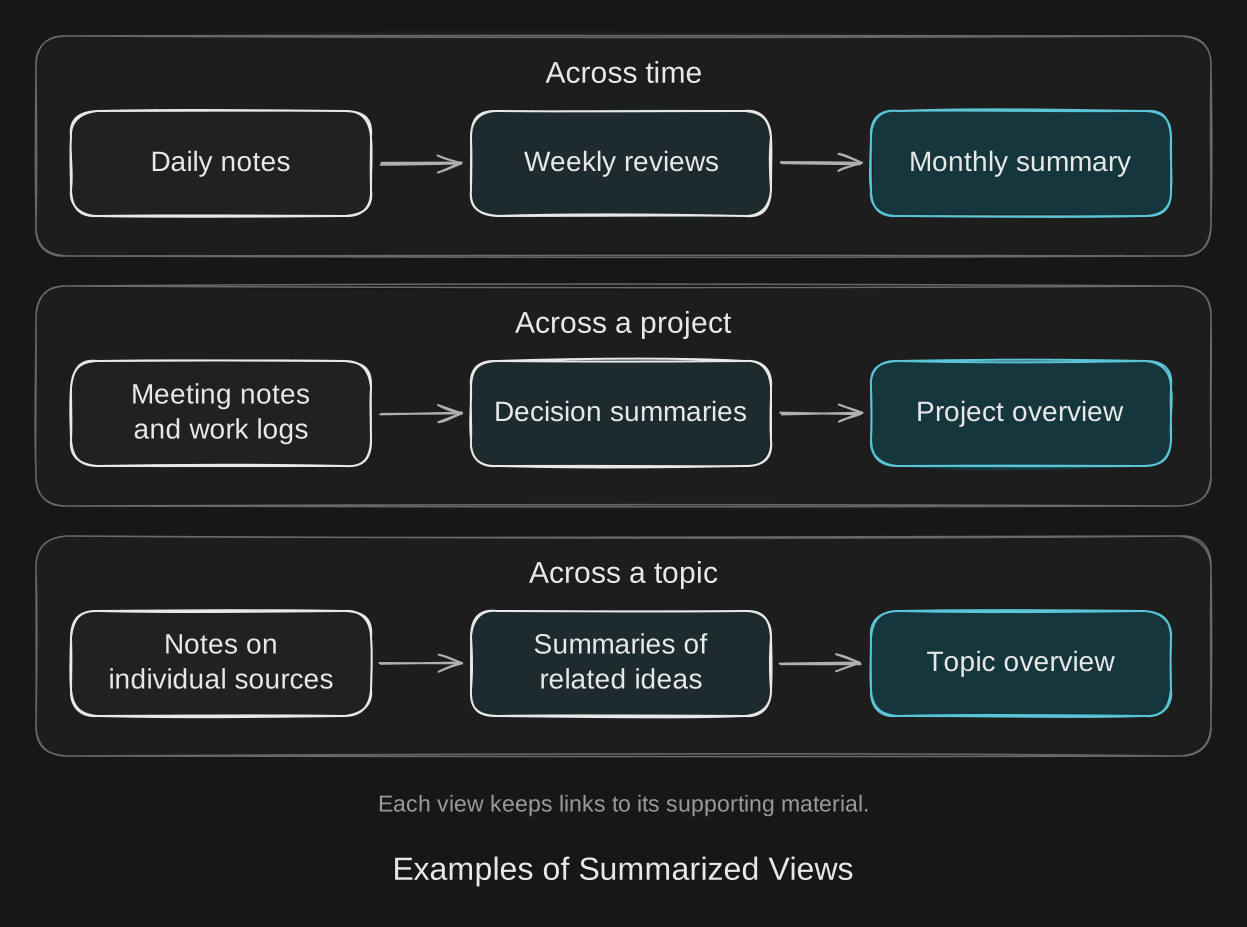
Once a curation procedure works reliably on request, you can schedule it to prepare review drafts, refresh selected summaries, or flag broken links. A weekly-review skill, for example, can save its draft in the usual location for you to review and add your reflections.
Run the procedure where the necessary notes and external sources are accessible, and have it check for an existing result before creating another. For a weekly review, the date range can identify the draft to update. If a run fails or cannot access a source, it should report what remains incomplete.
Cross-device access and synchronization
Access and synchronization models
On one computer, your agents can use the same local folder. Across devices, they need either access to a common service or a way to keep separate copies up to date. There are three common arrangements:
- Central access. Agents read and update records through one shared service. A hosted platform such as Notion works this way, as would a service exposing files or a database through an API. Each agent needs a connection to that service.
- Server-mediated synchronization. Each device works with local files, and a service transfers changes between them. Examples include iCloud Drive, Google Drive for desktop, Dropbox, and Obsidian Sync. The sync client’s settings determine which content is actually kept locally.
- Peer-to-peer synchronization. Participating devices keep local copies and exchange changes with one another. Syncthing follows this model. I’ve found it works well for synchronizing shared material between my machines. Once an always-on device has received an update, it can pass it to another device when that device reconnects.
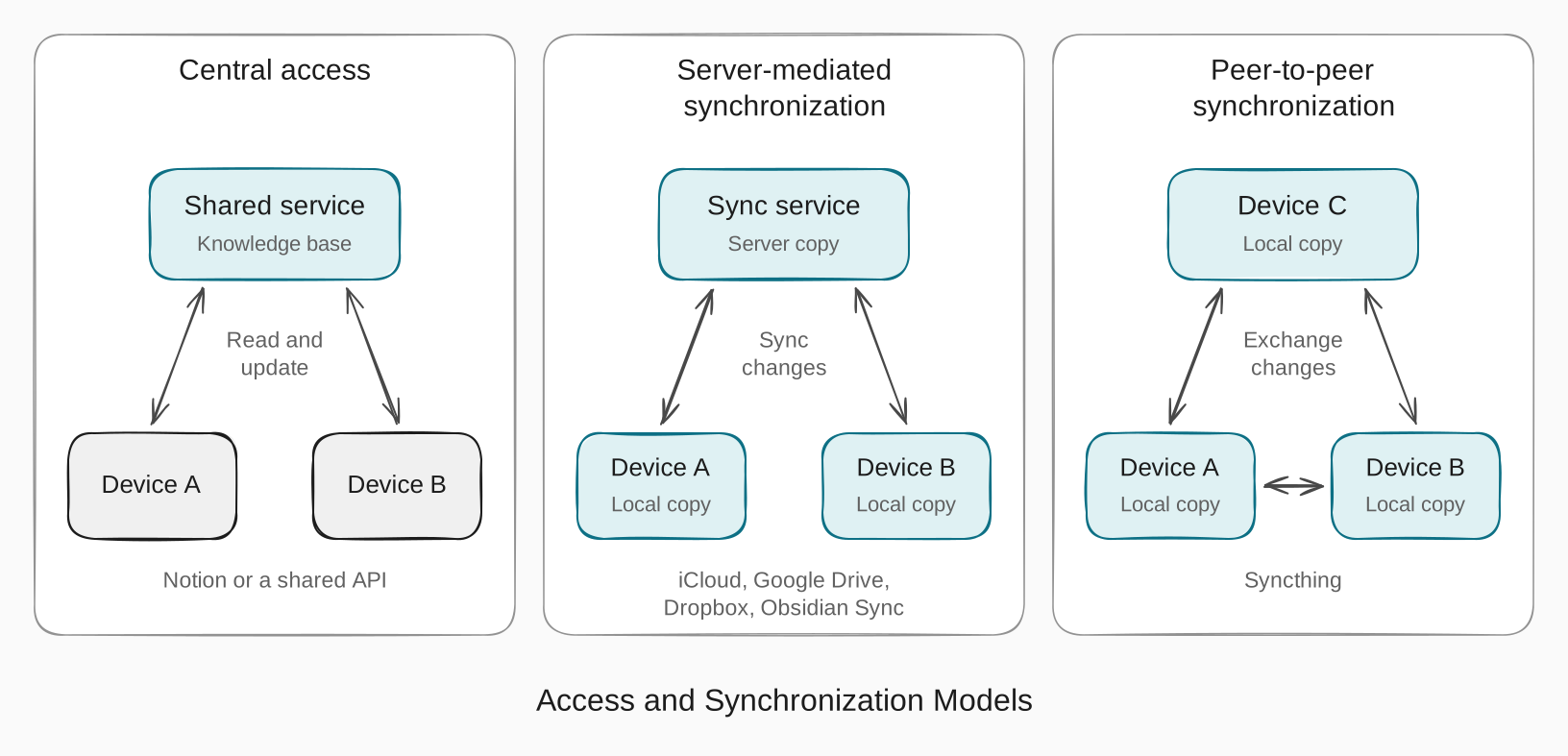
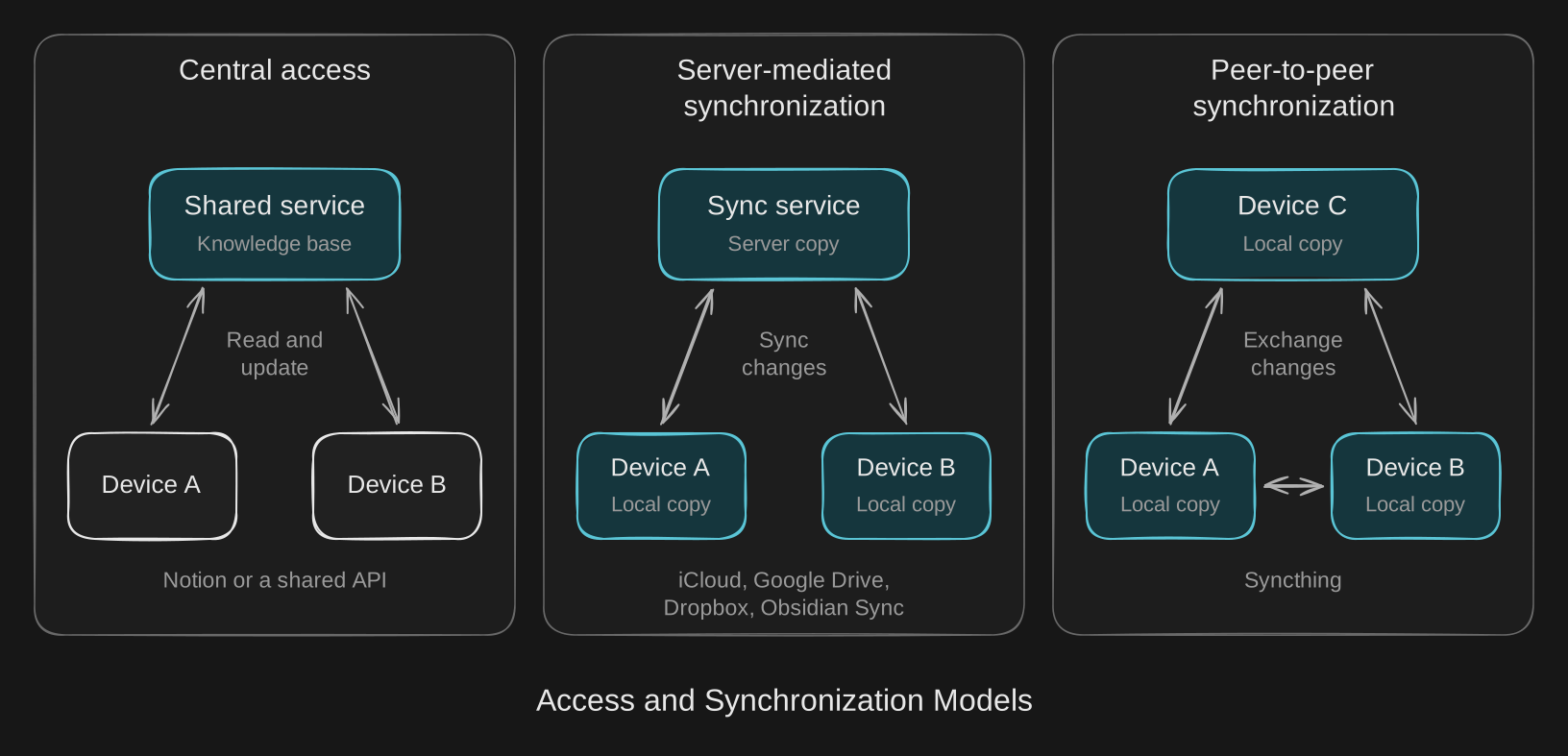
With either synchronization model, changes may take time to reach every device, so check that the device you’re moving to has received the latest updates before you or an agent continue working there.
Conflicts and write coordination
When you and an agent, or two agents, update the same material before seeing each other’s changes, useful information can be overwritten or conflicting versions can appear. How you coordinate those edits depends on the setup:
- Central access. Use the service’s supported editing operations and check how it handles competing updates to the same record. Agents should read the current record before changing it, since another task may have updated it during their work.
- Synchronized copies. With server-mediated or peer-to-peer synchronization, check that changes have reached the next device before another agent edits the same note. Conflict handling depends on the tool. Dropbox and Syncthing, for example, can preserve conflicting versions as separate files. Compare those versions, reconcile the intended changes, and let the result synchronize before continuing.
If you use Git to manage the files, commits and merges provide an explicit point to review and combine changes before sharing them. This adds steps to each handoff but can suit material such as shared instructions and skills.
For a personal setup, coordination mainly matters when you edit alongside an agent or run agents whose tasks overlap. You can often keep it simple by assigning them different notes, taking turns on shared records, and checking that the next agent has the latest version. Put these conventions in AGENTS.md so agents using different harnesses have the same guidance.
Bringing It All Together
Here’s a practical path for building and using the collection with Markdown files, Obsidian, and your chosen harnesses:
-
Open a Markdown folder in Obsidian. Use an existing vault or create one from a folder. This folder will hold the files that both Obsidian and your agents work with.
-
Add useful notes and a map. Bring in material you already keep, such as project notes, research, or relevant goals and preferences. Use the earlier folder structure as a starting point, and add a
README.mdthat links to useful starting points and explains where new material belongs. -
Write the shared instructions. Add
AGENTS.md, pointing to the map and describing what agents should retain, where to save updates, and which changes need your review. Include conventions for dates and source links so saved notes remain understandable later. -
Connect your harnesses. Use the vault as the project directory, or point to it from an existing agent workspace, following the examples in Agent interfaces. Make sure each harness can read the shared instructions and find the skills. On another computer, first choose a synchronization method and check that the notes, instructions, and supporting files are available there.
-
Capture and synthesize new material. If you don’t already keep notes on what you read, start with an article relevant to a current interest or project. Create a synthesis skill that captures useful ideas, preserves source links, and connects them to existing notes. Try it with the article, then review and edit the result in Obsidian.
-
Give an agent a task that uses the collection. Ask it to apply the saved material to something you’re working on. For example: “Use my notes on this topic to compare the options for my project, and link to the notes behind your recommendation.” Check whether it finds the relevant material and uses it appropriately.
-
Continue the work across harnesses. Save useful decisions and findings, then ask another harness to continue using the updated notes. Use any gaps you notice to improve the map, instructions, or synthesis skill. Add external connections and scheduled curation as recurring tasks make them useful.
Conclusion
Setting up a shared knowledge base takes effort, from organizing the initial notes and connecting your harnesses to refining the instructions they follow. Keeping it useful also means correcting notes, updating summaries, and revisiting material that has become outdated. The benefits may take time to become clear, especially while you are still learning what is worth saving and how it fits into your work.
As you reuse and improve the material, its value can compound. An article note can inform a project decision, and the reasoning saved with that decision can help another agent understand a related task months later. A correction to a shared instruction can improve how several harnesses handle similar work. The effort you put into one task can then contribute to the next, even as you change the agents and tools you use.
References and further reading
- Effective context engineering for AI agents, Anthropic: finding and loading relevant material with tools, and the role of organization and instructions.
- GBrain, Garry Tan: a personal-agent memory system with keyword retrieval and optional vector-based search for related meaning.
- OpenWiki, LangChain: an agent-maintained, linked Markdown wiki for codebases or personal knowledge.
- My O’Reilly Zero to Agent session on a shared knowledge base: the session that prompted this guide.